1) The dome is turning and won't stop.
This often happens if you turn on AUTO DOME and DOME TRACK before the focus initialization was finished (i.e., while the "AFOCUS" and "FOCUS" numbers are still moving at the upper-right of the screen).
- Turn off the AUTODOME switch (the dome should stop rotating), wait 5 sec, then turn it back on.
- Turn the DOME TRACK switch to "home" (the dome should return to its "home" position with the right side of the slit aligned with the arrow on the wall near the stairs -- if it does not, use the handpaddle buttons to line it up with the arrow).
- Turn the TRACK switch off (down) and send the telescope to the zenith (5, 7) or move it there manually with the handpaddle.
- Set the "HALT MOTORS" switch in and turn the DRIVES switch off (down).
- Turn the power strip off and wait 10 sec.
- Turn the power strip back on (the telescope will "wake up" with the dome at home and telescope at zenith -- the places it assumes them to be).
- Watch the "AFOCUS" and "FOCUS" numbers; when they are stopped, continue with normal Startup procedure.
2) The telescope won't move.
Check that the:
- "DRIVES/OFF" toggle switch is on "DRIVES" (up)
- "HALT MOTORS" switch is out
- target object is not out of range (see bottom center of display monitor)
- telescope is not approaching the horizon limit (see bottom center of display monitor; or look in dome)
3) The telescope isn't tracking properly.
Check that the:
- "TRACK/OFF" toggle switch is on "TRACK" (up)
- "TRACK/AUX TRACK" toggle switch is on "TRACK" (up)
- Track rates are 15.000 for R.A. and 0.000 for DEC. (in the RATES window on the telescope control monitor)
- "HALT MOTORS" switch is out
4) The telescope isn't pointing properly.
5) General last-ditch procedure:
6) If a sudden batch of clouds comes over, threatening rain/snow?
Close the dome slit shutters! If it comes in very quickly:
- Slew the telescope to a large airmass, away from the direction the wind is blowing from.
- Cover the CCD/electronics on the tail-piece with plastic/paper sheet (in warm room on shelves).
- Turn off AUTODOME switch in warm room and turn DOME switch to HOME.
- Close the dome shutters ASAP.
- Watch the weather closely when it is variable (satellite maps, radar, and by going outside).
1) When you click the icon to turn the filter wheel, there is a delay and a dialog box appears with "Received time out."
Problem: The filter wheel has not turned -- it has become physically stuck, or the electronics in the filter wheel have failed.
Solution: (1) Ensure the filter wheel power supply (small transformer) is plugged in and making good connection.
(2) Try a few more times. Sometimes it just hangs once. More likely, it is stuck for the night. If it is before 11pm, call Andy Layden for instructions. If not, you can continue observing using only the filter which you have available (that is, if it is stuck in I, just take I frames). Email or leave a voicemail message for Dr. Layden reporting the problem.
Note: this tends to happen when it is cold (T < 15F), avoid using the filterwheel when it is cold.
2) When using the filter wheel, you "Restart" to initialize the camera and filter wheel, and a dialog box appears warning that the filter wheel could not be initialized.
Problem: The computer probably has gotten confused about what COM Port it should use to send signals to the filter wheel. It seems to do this occasionally for no obvious reason.
Solution: Click the "Setup" tab. Ensure that the dragdown menu is set correctly: DFM FW-82 = Filter. Hit the "Filter" button and a dialog box will open. DON'T CHANGE any of the filter position assignments (eg, 1=U, 2=B, etc). Do ensure that the dragdown in "COM Port" is set to "COM1" -- change it if necessary. Exit the window and hit "Restart" on the Setup window. If the error dialog box reappears, contact Dr. Layden for help.
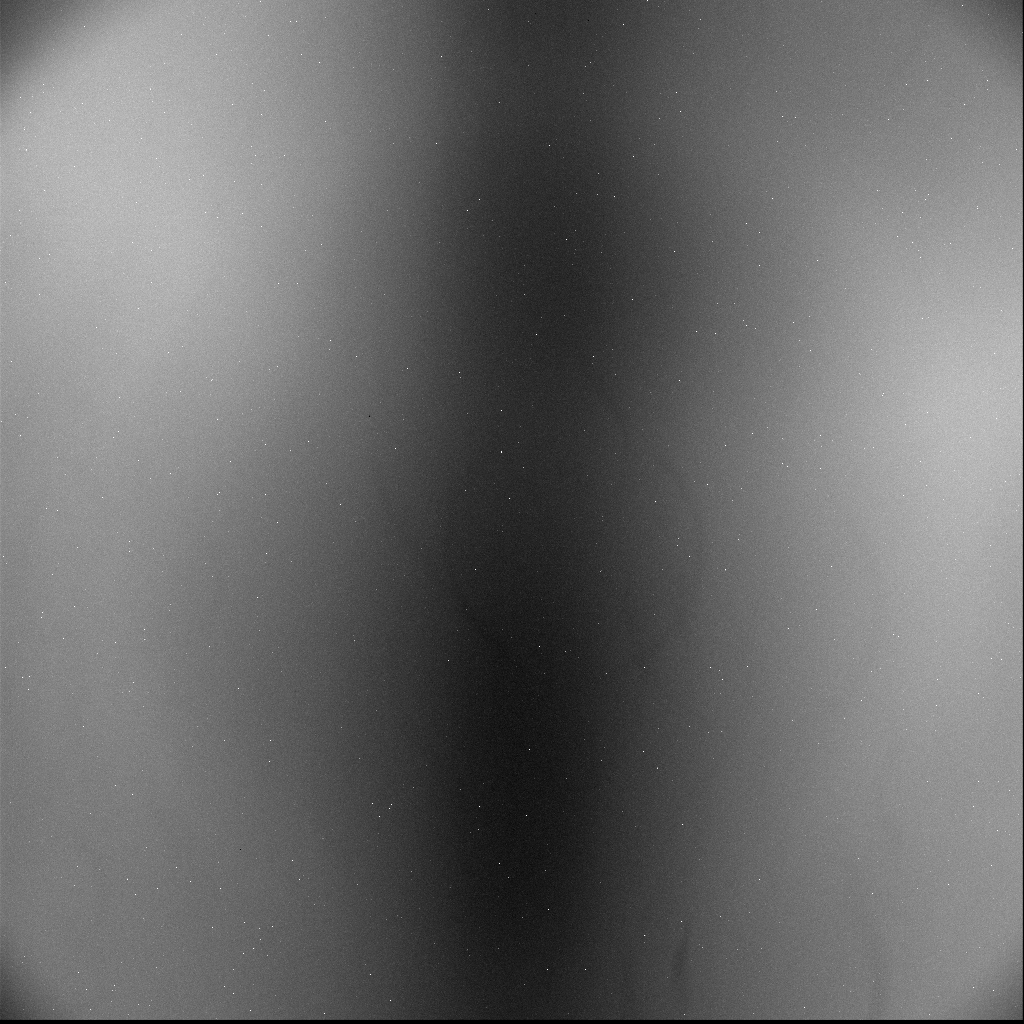
3) No stars appear near the center of the image, but there are stars around the edges/corners. If you are taking dome or sky flats, there is a dark blurry, vertical "bar" down the center of the image (like this).
Problem: The eyepiece is probably still centered in the light path (tick at 7.5 on the scale).
Solution: Slide the eyepiece assembly to the extreme right and tighten the thumbscrew to secure it. Turn off the reticle light too!
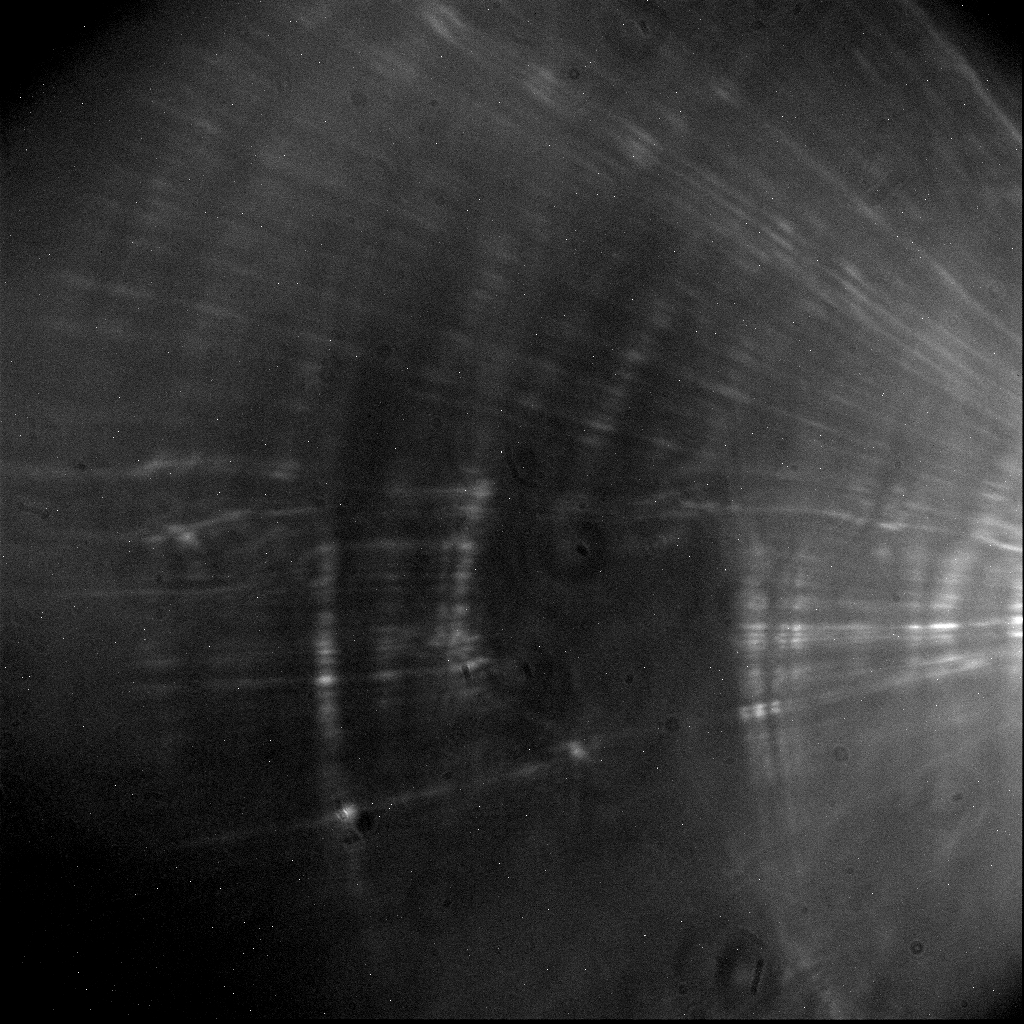
4) There is a bright, out of focus glow in the field which stays at the same position on the CCD even if you point the telescope at vastly different coordinates (like this).
Problem: There is a light on in the dome. Any light in the dome can be signficant, even the desk lamp or computer terminal (remember, some sources are bright in I even if they are faint/dark to your eyes!). Tests indicate this light is coming in through the eyepiece and scattering within the telescope!
Solution: Turn off all lights. Check to see whether the cross hairs are illuminated in the telescope eyepiece. If they are, turn it off using the potentiometer on the telescope tube. Turn off the cross hair light for the finder telescop too -- no sense in producing excess photons in the dome!
5) All stars appear like huge, out of focus doughnuts.
Problem: The telescope is way out of focus, probably at the setting for visual observing.
Solution: Using the handpaddle, set the focus to the CCD setting (around 2380 units) and do a focus sequence. Don't use the focus features in the TCS menus, they are disabled and may change the values on the screen without actually moving the mirror (getting you very confused!!).
6) The stars in your images are not in good focus (elongated or "doughnuts"), desipite the fact that you did a focus sequence.
There could be several reasons:
- You forgot to move the focus back to the best value in your focus table,
- You tried to move the focus with the keyboard command menu (this is disabled, use the buttons on the handpaddle),
- You used a very short exposure time (<<10sec) in your focus sequence. This tends to "freeze-frame" the seeing, giving anomalous FWHM and peak-cts values and misleading your to a poor focus setting. The profile of the star is constantly changing on a timescale of <1sec (your naked eye sees this as "twinkling"); using an exposure time >10sec averages the profile over many "twinkles" and gives a better representation of what your target (eg, globular cluster) images will look like. Redo the focus sequence with 12 second exposure times (and a fainter star? -- see the list of focus stars posted on the side of the CCD PC tower, and/or the finder charts at the back of the observing binder).
7) The boxes in the CCD Setup menu should read "Apogee 1", "No Guider", and "No Filter" (if you are useing the filter wheel, the bottom box should read "DFM FW-82").
If they don't, select them from the menus next to the box. You should then check that the CCD is properly formated by clicking the CCD button just to its right. It should have:
- Shutter = Normal
- External Trigger = Off
- Priority Level = Normal
- Initialization File Locator = C:\Program Files\Diffraction Limited\MaxIM DL\ap6e_pci2.ini
The filterwheel is disabled if "No Filter" is selected (the standard operating mode for RR Lyrae photometry). We may use the filterwheel for some programs, so at those times, you should select "DFM FW-82"from the menu. Clicking the Filter button will allow you to update the map between filter position and filter name (eg, slot #1 = U, etc) -- please don't touch this (we will get confused about which filter is in which slot!).
1) The PC is shutdown.
First, check in the dome to ensure the CCD cable is plugged into the CCD unit. If not, do so and snug the screws on the cable connector to hold it in place (there should be a small screwdriver in the rightmost desk in the dome). Don't overtighten! Then boot up the PC by pushing the button on the front of the tower.
2) You can't find the MaxIm_DL software to operate the CCD camera.
It lives in C:\Program Files\Diffraction Limited\MaxIm_DL. Click on the MaxIm_DL icon to start it up.
1) You can't find a nightly plan sheet, or the ones there are out of date.
Phone Dr. Layden at home (see bulletin board in warmroom). If not reachable, use your best judgement on which stars to use based on the ones available in the STScI folder. Something is better than nothing!